Capital expenditure is the lifeblood of a utility’s asset base. Without a steady, well-managed capital programme, the infrastructure that delivers water, electricity, and gas to customers deteriorates, reliability falls, and regulatory performance deteriorates. Yet managing capital projects in the utilities sector is genuinely complex projects span multiple years, involve dozens of contractors and suppliers, must be tracked against approved regulatory budgets, and end with a capitalisation process that feeds directly into the regulated asset base.
Many utilities manage this complexity with project-specific spreadsheets, disconnected finance systems, and monthly status meetings that surface problems weeks after they could have been addressed. Dynamics 365 Project Operations and Finance, configured by Olix365 for the utility capital programme context, replaces this fragmented approach with a single, integrated project management and accounting environment.
What This Guide Covers: Setting up utility capital project management in Dynamics 365 – from project structure and budgets through procurement, cost tracking, progress reporting, and fixed asset capitalisation.
The Utility Capital Project Lifecycle in Dynamics 365
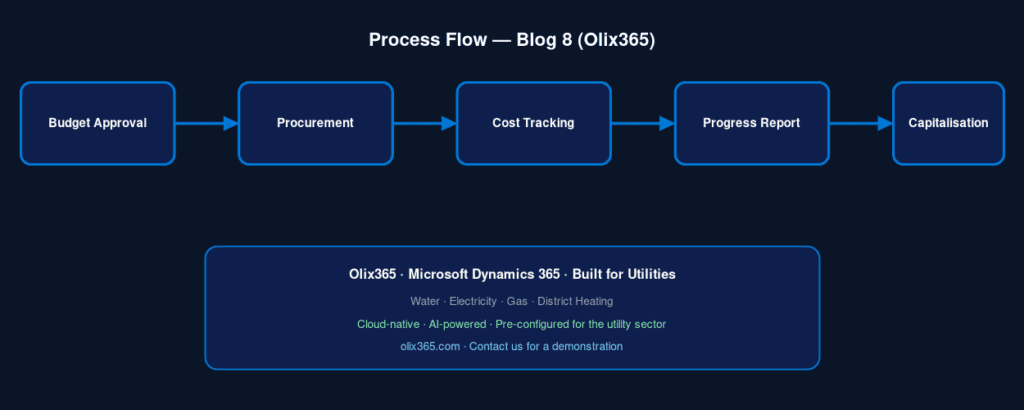
A capital project in Dynamics 365 passes through defined lifecycle stages that mirror the standard utility capital programme process:
- Project Creation and Budget Approval – Project is created with approved budget from the capital programme
- Design and Planning – Design costs accrue; procurement for construction begins
- Construction / Installation – Main expenditure phase; contractor invoices, materials, and internal labour post to project
- Commissioning – Final testing and acceptance; any remedial costs captured
- Capitalisation – Project costs transferred to fixed asset register; depreciation commences
- Project Closure – Any remaining WIP balance reviewed and resolved
Step 1: Create the Project Structure
In Dynamics 365 Finance (or Project Operations for more complex project tracking), create the project structure:
- Navigate to Project Management → Projects → All Projects → New.
- Set the Project Type to “Investment” (for CapEx projects that result in a fixed asset) or “Time and Material” (for ongoing maintenance projects).
- Set the Project Group — this controls the default WIP account and capitalisation account.
- Enter the Approved Budget from your capital programme – this creates the project budget register entry.
- Create the Work Breakdown Structure (WBS) – break the project into deliverables (e.g., Design, Civil Works, Electrical Installation, Commissioning). Each WBS element becomes a cost category for tracking.
Step 2: Integrate Procurement with the Project
All procurement against the project must reference the project code to ensure costs post to the correct WIP account. Configure this in Dynamics 365:
- When creating a purchase order for project materials or contracted services, select the Project ID in the purchase order line.
- Select the Cost Category matching the relevant WBS element.
- Dynamics 365 automatically routes the cost to the project WIP account when the goods receipt or contractor invoice is processed.
- Budget control validation checks that the purchase order commitment does not exceed the approved WBS budget — over-budget commitments require additional approval before the order can be confirmed.
For utilities with framework contracts (see our Procurement for Utilities guide), call-off orders against the framework are linked to the project code in the same way.
Step 3: Track Labour and Plant Hire Costs
Beyond procurement, capital projects consume internal labour and hired plant. Record these costs:
Internal Labour: Time entries from project staff (project managers, internal engineers) are entered via the Dynamics 365 timesheet module. Hours are valued at a pre-configured internal cost rate and post to the project’s WIP labour account.
Plant Hire: Hired equipment (cranes, excavators, cable-pulling rigs) is procured via purchase orders with the project code, flowing to the WIP materials account. If plant is owned by the utility, internal plant charges are entered as resource consumption against the project.
Overhead Allocation: Dynamics 365 can automatically allocate a share of indirect overheads (project management office, design team, IT) to capital projects based on a configured allocation rule (e.g., as a percentage of direct costs or based on direct labour hours).
Step 4: Build the Project Progress and Cost Dashboard
Connect project data to Power BI for the project manager and finance director views:
Project Manager View:
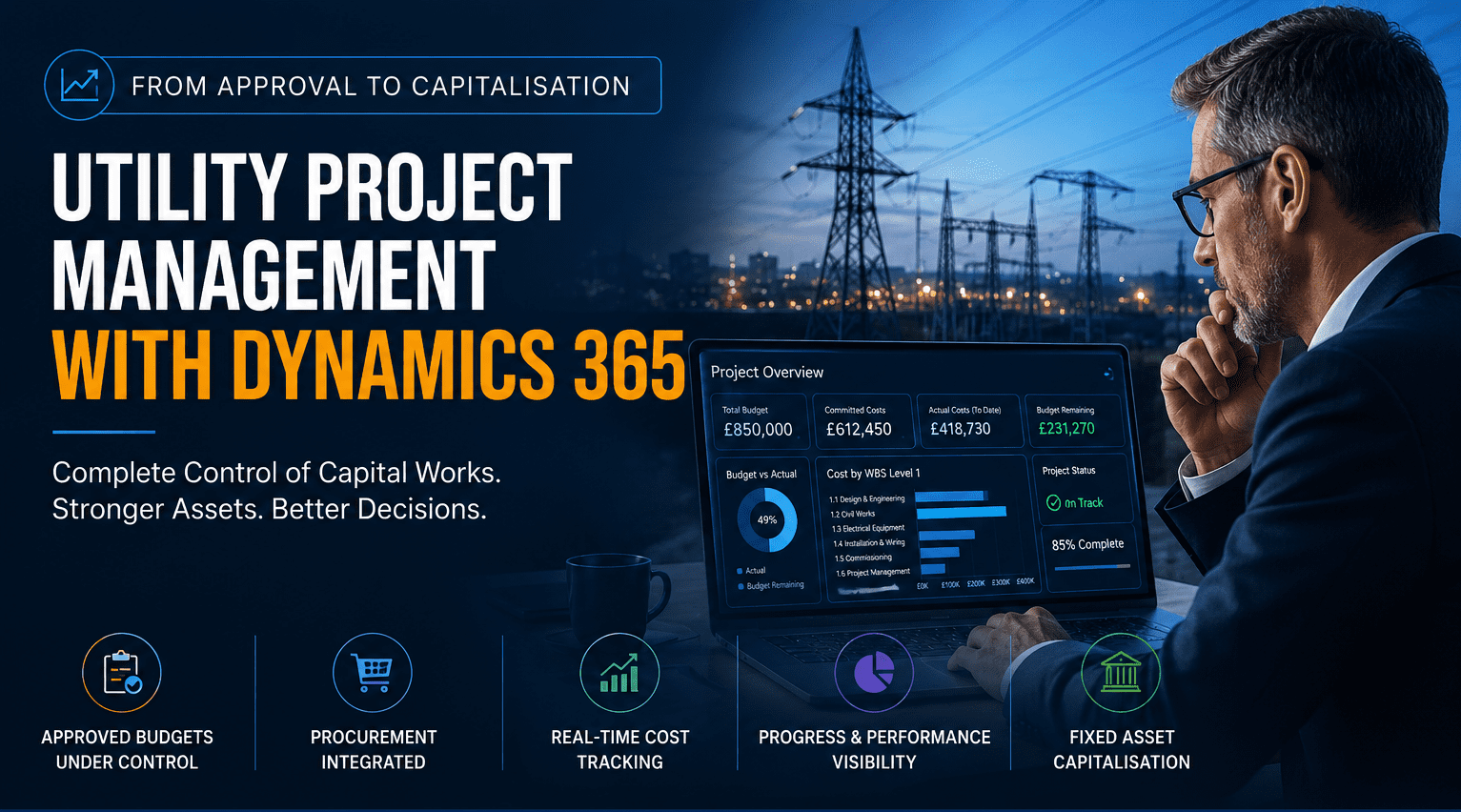
- Earned value analysis (Budget, Actual, Forecast to Complete, Forecast at Completion)
- Spend by WBS element vs. budget
- Open commitments (confirmed purchase orders not yet invoiced)
- Risk register summary
Finance Director / Capital Programme View:
- All active capital projects: budget, committed, actual, forecast, and variance
- Projects at risk (forecast overspend > 10% above budget)
- Cash flow forecast by project and by month
- Cumulative CapEx spend vs. regulatory allowance (for regulated utilities)
Olix365 includes a pre-built Capital Programme Power BI dashboard. See our Power BI reporting for utilities guide for the connection architecture.
Step 5: Capitalise Completed Projects
When a capital project is complete and the asset is ready for service, transfer the accumulated WIP costs to the fixed asset register:
- Navigate to Project Management → Periodic → Fixed Assets → Capitalise.
- Review the accumulated costs by WBS category.
- Map costs to the appropriate fixed asset categories (Civil Structure, Electrical Plant, IT Equipment).
- Create the fixed asset record — or link to an existing asset record if it is an enhancement to an existing asset.
- Set the in-service date — this is the date from which depreciation commences.
- Post the capitalisation journal — WIP account is credited; Fixed Asset account is debited.
Dynamics 365 automatically calculates and posts the first depreciation run based on the depreciation profile configured for the asset category. For utilities under regulatory price controls, asset value and depreciation profiles often require sign-off from the regulatory finance team before capitalisation.
Step 6: Close the Project
After capitalisation, review any remaining WIP balance (costs that were not capitalised, such as abortive design costs or preliminary site investigation expenses). Depending on your accounting policy, these are either expensed to the P&L or written off against a provisions account. Once the WIP balance is zero, change the project status to “Closed” — this prevents any further cost postings and locks the project record.
Conclusion
Dynamics 365, configured by Olix365 for the utility capital programme context, gives project managers, procurement teams, and finance directors the integrated cost tracking, budget control, and capitalisation automation they need to manage a complex capital programme. The result is fewer cost overruns, faster month-end close, and a reliable audit trail for regulatory reporting.
Contact Olix365 to discuss your capital programme management requirements.
Frequently Asked Questions
Does Dynamics 365 support project management for multi-year capital programmes?
Yes. Dynamics 365 supports multi-year projects with budget periods that can span multiple financial years. Budget forecasts can be updated during the project lifecycle, and Dynamics 365 maintains a full history of budget revisions with the reason for change and the approver. For programmes with regulatory approval at individual project level, each project can have its own approved budget tracked independently.
Can we manage both OPEX maintenance projects and CAPEX infrastructure projects in the same system?
Yes. Dynamics 365 differentiates project types (Investment for CapEx, Cost for OpEx) in the project setup. The system enforces the correct accounting treatment automatically — CapEx costs post to WIP accounts for subsequent capitalisation, while OpEx costs post directly to maintenance expense accounts. Both types can be managed, tracked, and reported within the same system.
How does Dynamics 365 handle projects that are split across multiple regulatory periods or funding sources?
Projects can have multiple funding sources configured in Dynamics 365 Project Operations. Each funding source has its own budget and cost limit, and the system allocates costs against funding sources in priority order. For utilities with projects spanning regulatory periods (e.g., a 5-year AMP/RIIO period), the budget cycle can be configured to align with the regulatory period timeline.
Can Dynamics 365 generate progress reports for the board and regulatory submissions?
Yes. Power BI connected to Dynamics 365 can generate capital programme progress reports in the format required for board presentations and regulatory annual return submissions. Olix365 includes pre-built report templates aligned to common regulatory reporting formats used in the water and energy sectors. These can be scheduled for automatic delivery to recipients via email or Teams.