Utility companies spend heavily on external goods and services – maintenance contractors, specialist equipment, chemicals, materials, and infrastructure components. For most utilities, procurement spend represents 30–50% of total operational costs. Yet many utilities manage this spend through manual, paper-based processes: emailed purchase orders, phone-call approvals, and end-of-month invoice reconciliation sessions that consume days of finance team time.
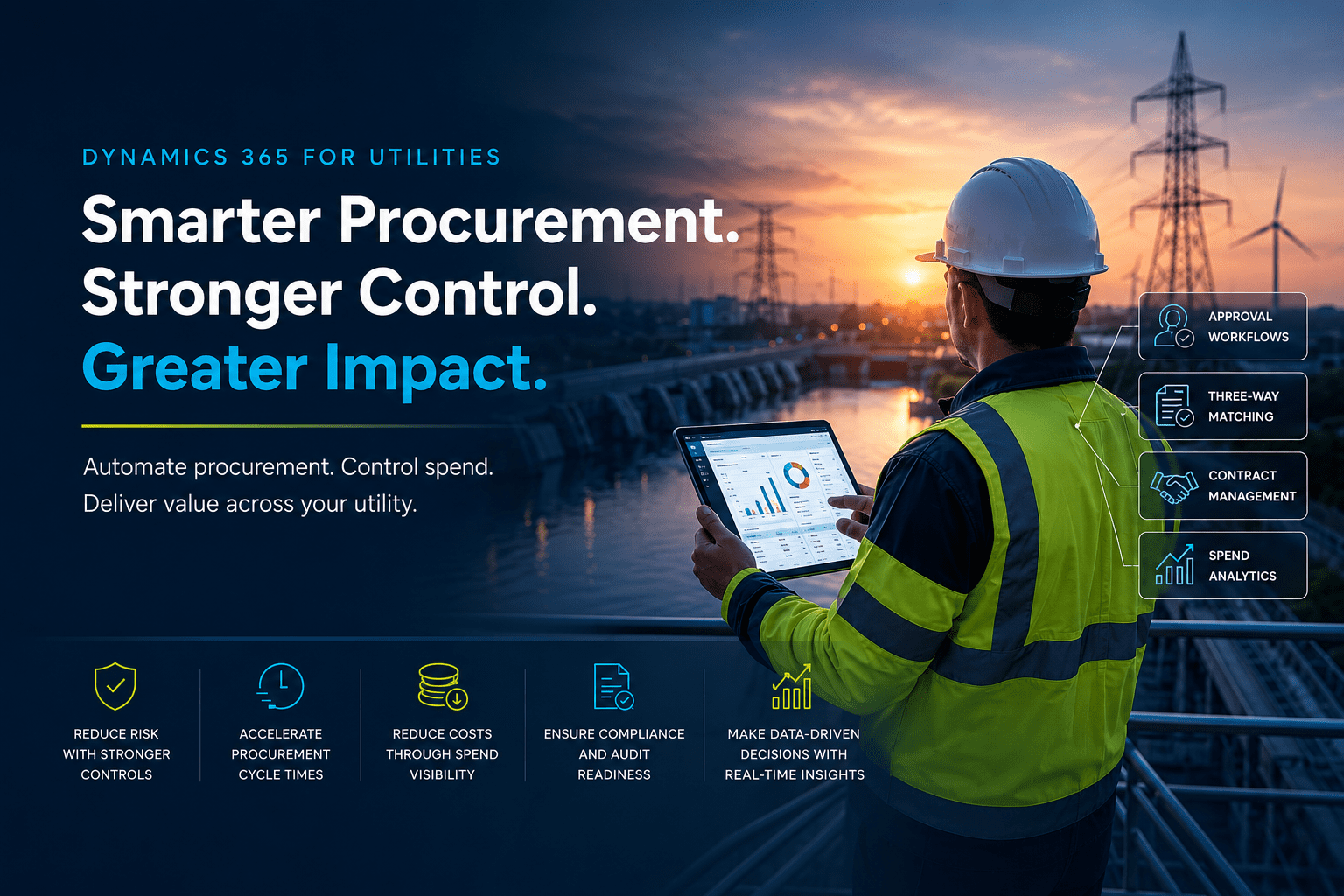
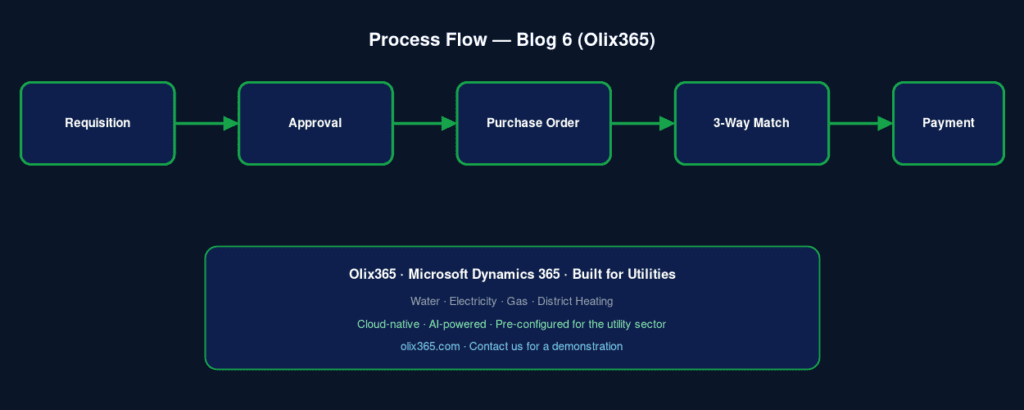
Dynamics 365 Procurement and Sourcing, configured by Olix365 for the utilities sector, automates the entire purchase-to-pay process – from requisition to three-way matched invoice – while enforcing spending controls and providing real-time visibility of committed spend.
What This Guide Covers: Configuring Dynamics 365 procurement for utilities – purchase requisitions, approval workflows, vendor management, three-way matching, and spend analytics.
The Utility Procurement Challenge
Utility procurement has several characteristics that make it more complex than standard commercial procurement:
Emergency procurement: When a transmission asset fails, parts and contractor services must be procured immediately – sometimes outside normal business hours. The procurement process must support emergency bypass procedures that are fast but still auditable.
Framework contracts: Most utilities operate under long-term framework agreements with maintenance contractors and material suppliers. The procurement system must manage call-offs against these frameworks and track cumulative spend against contract thresholds.
Capital vs. Operational split: Procurement for capital projects must be correctly coded as CapEx; maintenance procurement as OpEx. This distinction has significant balance sheet implications and must be enforced at the point of purchasing, not retrospectively corrected at month-end.
Regulatory compliance: Utilities above certain procurement thresholds (especially in the public sector) must demonstrate competitive tendering processes. The procurement system must maintain the evidence trail for regulatory audit.
Step 1: Set Up Your Vendor Master and Qualification Process
A clean, well-maintained vendor master is the foundation of effective procurement. In Dynamics 365:
- Navigate to Procurement → Vendors → All Vendors → New.
- Create vendor records with full details: legal name, registration number, payment terms, bank details, tax codes, and contact information.
- Enable the Vendor Portal so suppliers can self-maintain their details, submit invoices, and track payment status without calling your AP team.
- Configure Vendor Qualification categories to classify vendors by service type (electrical contractor, civil contractor, chemical supplier) and record compliance documentation (insurance certificates, safety accreditations, ISO certifications) with expiry date tracking.
Tip: Configure automated alerts for expiring vendor compliance documents. A vendor whose public liability insurance has lapsed should be automatically suspended from receiving new purchase orders until the documentation is renewed.
Step 2: Configure Purchase Requisition and Approval Workflows
Purchase requisitions are the first step in the procurement process. They capture the business need before commitment is made. For utilities:
- Navigate to Procurement → Setup → Policies → Purchasing Policies.
- Create policies defining who can raise requisitions, up to what value, and which approval workflow applies.
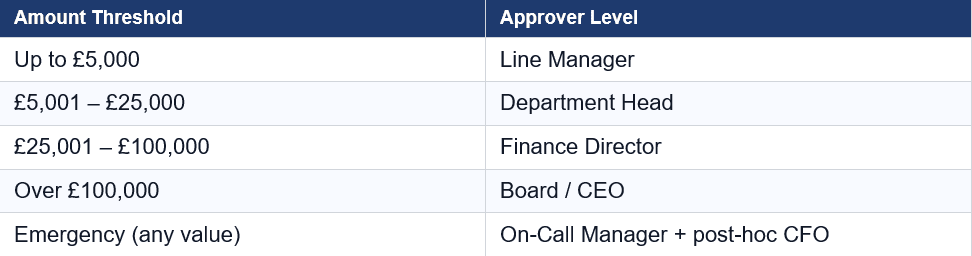
- Configure approval thresholds aligned to your delegated authority matrix:
- Enable email and Teams notifications for approvers so they are alerted to pending approvals immediately.
- Configure escalation rules so that approvals not actioned within 24 hours automatically escalate to the next level.
Step 3: Automate Purchase Order Creation
Once a requisition is approved, Dynamics 365 can automatically convert it to a purchase order and send it to the supplier either electronically via EDI, email, or the vendor portal.
For utilities with framework contracts:
- Create Purchase Agreements for each framework contract, specifying the agreed unit rates, scope, and contract value.
- When raising a purchase order for framework-contracted services, reference the Purchase Agreement Dynamics 365 validates that the unit rates are correct and tracks cumulative spend against the contract ceiling.
- Configure an alert when cumulative spend reaches 80% of the contract value, triggering the re-procurement process before the contract expires.
Step 4: Implement Three-Way Invoice Matching
Three-way matching (purchase order + goods receipt + invoice) is the core control for preventing overpayment and fraud. Configure it in Dynamics 365:
- Navigate to Accounts Payable → Setup → Accounts Payable Parameters → Invoice Matching.
- Enable Three-way matching for all purchase orders.
- Set matching tolerances (e.g., accept invoices within 2% of the purchase order price without manual review).
- Configure the exception routing invoices outside tolerance route to the AP team for review rather than blocking automatically.
With three-way matching in place:
- Invoices that match within tolerance are auto-approved and queued for the next payment run.
- Exceptions are flagged for human review with the discrepancy highlighted.
- The risk of paying a fraudulent or incorrect invoice is reduced significantly.
Step 5: Configure Spend Analytics
With procurement data in Dynamics 365, connect Power BI for real-time spend visibility:
- Spend by category and supplier (treemap) – identify consolidation opportunities
- PO cycle time – from requisition to order confirmation (target: <2 days for routine, <4 hours for emergency)
- Contract utilisation – actual spend vs. framework contract commitment
- Invoice matching success rate – KPI tracking automation efficiency
- Savings achieved vs. benchmark rates (for framework vs. spot purchase comparison)
This visibility allows procurement managers to identify where the organisation is buying from unapproved suppliers, where contract leverage is being underused, and where approval bottlenecks are creating delays.
Olix365’s procurement analytics dashboard is pre-built and deploys with zero configuration, delivering spend visibility from go-live day one. Read about the broader ERP benefits for utility companies.
Conclusion
Dynamics 365 Procurement, configured for the utility sector by Olix365, transforms procurement from a manual, reactive cost centre into an automated, controlled, and analytically visible function. The combination of approval workflows, framework contract management, and three-way invoice matching gives utilities the spend control and audit trail they need to satisfy both internal governance requirements and external regulatory scrutiny.
Contact Olix365 to see how we configure procurement for utility companies.
Frequently Asked Questions
Can Dynamics 365 procurement handle emergency purchase orders raised outside normal business hours?
Yes. Olix365 configures an emergency procurement workflow that allows field managers to raise urgent purchase orders against pre-approved emergency suppliers without waiting for standard approval chains. The order is flagged as emergency, generates a notification to the on-call finance manager, and receives post-hoc approval the next business day. All emergency orders are captured in the system and are fully auditable.
Does Dynamics 365 support electronic purchase order transmission to suppliers (EDI)?
Yes. Dynamics 365 supports EDI (Electronic Data Interchange) for purchase order transmission to suppliers who support it. For suppliers who do not have EDI capability, purchase orders can be sent automatically by email as a PDF attachment directly from the system. The vendor portal option allows suppliers to log in and acknowledge or query orders electronically.
How does the system handle blanket purchase orders and release orders against them?
Blanket orders (called Purchase Agreements in Dynamics 365) define the terms, pricing, and total value of a framework agreement. Individual call-offs (release orders) are raised against the blanket order referencing the agreed unit rates. Dynamics 365 tracks cumulative released value vs. the agreement ceiling and alerts procurement when the ceiling is approaching, preventing inadvertent contract breach.
Can we integrate the procurement system with our existing inventory management system?
Yes. Dynamics 365 Procurement integrates natively with Dynamics 365 Supply Chain Management's inventory module, and Olix365 builds integration connectors for third-party warehouse management systems. When a purchase order is received into the warehouse, stock levels update automatically, and if the item was reserved for a specific work order, the reservation is confirmed.
How does the system prevent duplicate payments to the same supplier?
Dynamics 365 includes vendor deduplication and invoice duplicate detection as standard controls. When an invoice is entered, the system checks for invoices with the same vendor, invoice number, and amount already posted. Suspected duplicates are flagged for review before payment. The vendor master also prevents the creation of duplicate vendor records through matching logic on vendor name and registration number.
Can the procurement approval workflow route to approvers who are out of office?
Yes. Approval workflows in Dynamics 365 support out-of-office delegation. When an approver is on leave, they can delegate their approval authority to a named colleague for a specified period. Alternatively, the workflow escalation rules will automatically route to the next level approver if the primary approver does not respond within the configured timeout period.