
Utility companies face a constant pressure that most industries never experience: the expectation of 24/7 availability combined with ageing infrastructure, dispersed field teams, and increasingly complex compliance requirements. When a water main bursts or a transformer trips, every minute of delay translates directly into customer dissatisfaction, regulatory scrutiny, and real financial cost.
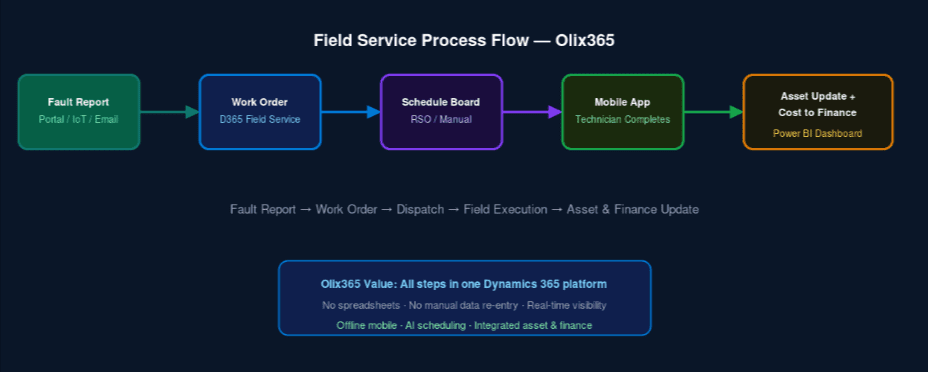
Microsoft Dynamics 365 Field Service, when configured for the utilities sector, closes the gap between control room decisions and field execution. It connects work order creation, resource scheduling, mobile workforce management, and asset history into a single platform – eliminating the phone calls, spreadsheets, and disconnected systems that slow down utility operations today.
In this guide, you will learn how to set up and configure Dynamics 365 Field Service specifically for a utility environment, from work order types to intelligent scheduling and mobile offline capabilities.
What You’ll Build: A fully configured Dynamics 365 Field Service environment that handles reactive faults, planned maintenance, and asset inspections with mobile access for field teams and live dashboards for operations managers.
Why Utilities Need a Purpose-Built Field Service Platform
Generic field service tools were built for HVAC companies and lift maintenance firms – not for organisations managing hundreds of kilometres of pipelines, substations, and treatment plants. Utility-specific requirements include:
- Multi-site asset hierarchies — Assets are nested: a substation contains transformers, which contain bushings. Your CMMS must reflect this.
- Regulatory work orders — Many maintenance activities are driven by regulatory inspection schedules, not just reactive faults.
- Crew-based dispatch — Utility jobs often require two or more technicians, specialist equipment, and specific safety permits.
- Offline mobile access — Field workers operate in areas with no mobile signal. The mobile app must function fully offline and sync when connectivity returns.
- Integration with GIS and SCADA — Spatial awareness and real-time telemetry data must flow into work orders automatically.
Dynamics 365 Field Service, extended by Olix365’s utility-specific configuration, addresses all of these requirements out of the box. See our overview of Dynamics 365 for Utilities for a broader picture.
Step 1: Configure Your Service Territory and Organisational Units
Service territories define the geographic areas your crews cover. For a utility company, these typically map to network zones, districts, or regional depot catchment areas.
- In Dynamics 365 Field Service, navigate to Settings → Service Territories.
- Create territories matching your operational districts (e.g., “Northern Network”, “Southern Network”).
- Assign resources (technicians, crews) to each territory based on their primary depot location.
- Set the territory on each asset record so that work orders generated from asset alerts are automatically routed to the correct territory.
For large utilities with multiple business units (water, waste, electricity), use Organisational Units to segment billing rates, working hours, and resource pools. This ensures a job raised against a water main is only ever visible to your water network team.
Step 2: Define Work Order Types for Utility Operations
Work order types control the behaviour, default tasks, and SLA targets for each category of field work. A well-structured type hierarchy dramatically reduces data entry and improves reporting accuracy.
Recommended work order types for utilities:
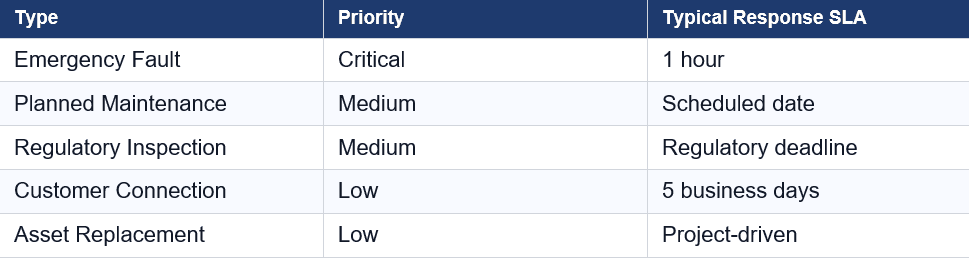
For each type, configure:
- Default service tasks – the checklist of steps a technician must complete
- Required skills – electrical, confined space, high-voltage certification
- Estimated duration – feeds into the scheduling engine
- Billing account – links to Finance for cost capture
Step 3: Build Your Resource Pool
Resources in Dynamics 365 Field Service represent both people and equipment. For utilities:
- Navigate to Resources → Bookable Resources → New.
- Create a record for each technician with their working hours, skills, certifications (including expiry dates), and home depot location.
- Create Crew resource types for jobs that require multi-person teams. Add individual technicians as crew members.
- Create Equipment resource types for specialist plant (cable fault locator, pump testing rig) that must be booked alongside a crew.
Tip: Use the Characteristics feature to tag resources with skills (e.g., HV Switching, GIS Operator, First Aid). The scheduling engine uses these to filter eligible resources automatically.
Step 4: Configure the Schedule Board
The Schedule Board is the command centre for your dispatch team. For utilities, configure it to show:
- A map view overlaid with your asset and job locations
- Colour coding by work order type (red for emergency, amber for planned)
- Resource utilisation across the working day and week
- Travel time calculated via Bing Maps routing
Enable Resource Scheduling Optimisation (RSO) to let the AI engine automatically propose the optimal assignment of jobs to resources, minimising travel distance and respecting skills, SLAs, and working hours.
Important: RSO requires a separate add-on licence. For organisations not ready for full automation, the Scheduling Assistant provides semi-automated suggestions when a dispatcher selects a work order.
Step 5: Deploy the Mobile App to Field Teams
The Dynamics 365 Field Service mobile app runs on iOS and Android. For utility field teams:
- Install the app on technician devices via your MDM platform (Microsoft Intune or equivalent).
- Configure offline profiles to pre-download asset records, task lists, and maps for each technician’s territory. This enables full functionality with no signal.
- Enable photo capture on service tasks so technicians can attach evidence photos directly to the work order.
- Configure IoT alerts to surface relevant sensor readings from connected assets on the technician’s mobile view.
Field technicians can complete service tasks, capture signatures, record meter readings, update asset conditions, and close work orders — all from the mobile app. Data syncs automatically when connectivity is restored. For more on the benefits this brings to utility operations, read our post on ERP benefits for utilities.
Step 6: Connect Asset Management for Predictive Maintenance
Dynamics 365 Field Service integrates natively with Dynamics 365 Asset Management (part of the Finance + Operations suite), which Olix365 configures as a unified platform for utilities. This integration:
- Links work orders to asset records – every job is traceable to the specific asset it was performed on
- Maintains full maintenance history – mean time between failures, cost per asset, compliance history
- Triggers condition-based work orders – when an IoT sensor reading exceeds a threshold, a work order is created automatically
- Drives preventive maintenance schedules – calendar-based or meter-based triggers generate planned maintenance work orders automatically
Step 7: Build Operational Dashboards
Connect your Field Service data to Power BI to give operations managers real-time visibility:
- Open work orders by type and priority – instantly see what is outstanding
- Resource utilisation heat map – identify over and under-utilised crews
- SLA compliance trend – track on-time completion rates over time
- Mean time to repair (MTTR) – benchmark against industry targets
- Asset reliability scores – prioritise capital replacement decisions
Olix365 includes pre-built Power BI templates designed specifically for utility operations dashboards, reducing deployment time from weeks to days.
Conclusion
Dynamics 365 Field Service, properly configured for the utilities sector, transforms your field operations from reactive and disconnected to predictive, coordinated, and data-driven. The combination of intelligent scheduling, offline mobile capability, and integrated asset management gives your utility the operational control it needs to meet service level commitments and regulatory obligations.
Ready to see Olix365 in action? Contact our team to arrange a utilities-specific demonstration.
Frequently Asked Questions
Does Dynamics 365 Field Service work without an internet connection for field technicians?
Yes. The Dynamics 365 Field Service mobile app supports full offline functionality. Technicians can access their assigned work orders, complete service tasks, capture photos, record meter readings, and close jobs without any mobile signal. When connectivity is restored, all changes sync automatically to the central system. Offline profiles are pre-configured by administrators to define which data is downloaded to each device.
How does Dynamics 365 Field Service handle emergency callouts that arrive outside business hours?
You can configure automated work order creation rules that trigger from email, web portal submissions, IoT alerts, or phone system integrations at any time of day. An on-call resource schedule can be set up so that emergency work orders are automatically assigned to the on-call crew. Push notifications are sent to the technician's mobile device via the Field Service app.
Can Dynamics 365 Field Service integrate with our existing GIS system?
Yes. Dynamics 365 Field Service uses Bing Maps for routing and scheduling by default, but it can be integrated with third-party GIS platforms (Esri ArcGIS, Google Maps Platform) through the Azure Maps connector or custom API integration. Olix365 has pre-built connectors for common GIS platforms used in the utilities sector.
How many resources can the Resource Scheduling Optimisation (RSO) engine handle?
RSO scales to hundreds of resources and thousands of work orders. It is designed for enterprise field service organisations with large, distributed workforces. Performance depends on the complexity of your scheduling constraints (skills, territories, working hours, travel times), but most utility deployments see optimisation runs complete within minutes.
Does the system track safety permits and working-at-height certifications?
Yes. Use the Characteristics feature in Dynamics 365 to record certifications and their expiry dates for each resource. The scheduling engine will not propose a resource for a work order requiring a specific certification if that certification is expired. You can configure automated alerts to notify HR and the resource manager before expiry.
How does Olix365 differ from standard Dynamics 365 Field Service?
Olix365 is a pre-configured, industry-specific solution built on Microsoft Dynamics 365 for utility companies. It includes utility-specific work order types, asset hierarchies, regulatory inspection templates, pre-built Power BI dashboards, and integrations with common GIS and SCADA systems — eliminating the months of configuration work required to adapt a generic Dynamics 365 implementation to a utility environment.
Can customers log faults directly into the system via a self-service portal?
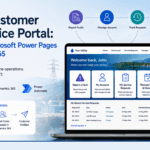
Yes. Olix365 includes a customer self-service portal where customers can log faults, track the status of their reported issues, and receive automated notifications when a technician is assigned and when the job is completed. The portal is built on Microsoft Power Pages and integrates directly with the Field Service work order engine.
What is the difference between a work order and a service request in Dynamics 365 Field Service?
A service request (or case) is the initial record of a customer complaint or fault report — it captures the problem, the customer, and the affected asset. A work order is the operational instruction that dispatches a field crew to resolve the problem. One service request can generate multiple work orders (e.g., an initial investigation followed by a repair job). Dynamics 365 links the two so that customer communication and field dispatch are connected.