Infrastructure assets are the heartbeat of a utility company. A water pump that fails unexpectedly doesn’t just create a repair cost – it triggers a cascade of consequences: lost supply, regulatory notifications, customer complaints, and often emergency spending that dwarfs what planned maintenance would have cost.
Yet many utilities still manage their asset data in disconnected systems: a legacy CMMS here, spreadsheets there, and maintenance history trapped in technicians’ heads. When critical asset data is fragmented, every maintenance decision is made partially blind.
Microsoft Dynamics 365 Asset Management, part of the Finance and Operations suite and deeply integrated within the Olix365 platform, gives utility companies a single, structured repository for every asset they own – from a 40-year-old transmission line to a newly commissioned treatment plant. More importantly, it turns that data into actionable maintenance intelligence.
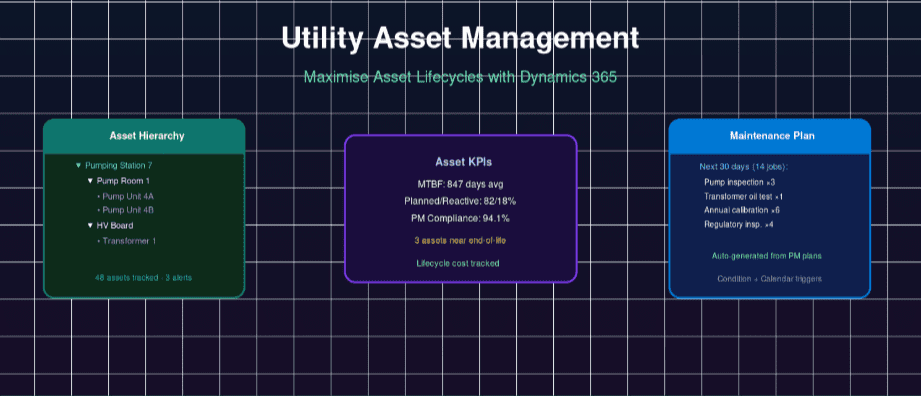
Why Asset Data Quality Is the Foundation of Utility Operations
Before configuring any software, the most important question is: what do you know about your assets, and is that knowledge recorded consistently?
Poor asset data leads to:
- Reactive maintenance that costs 3–5x more than planned maintenance
- Regulatory non-compliance due to missed inspection deadlines
- Capital budget decisions based on incomplete lifecycle cost history
- Field teams wasting time finding asset information mid-job
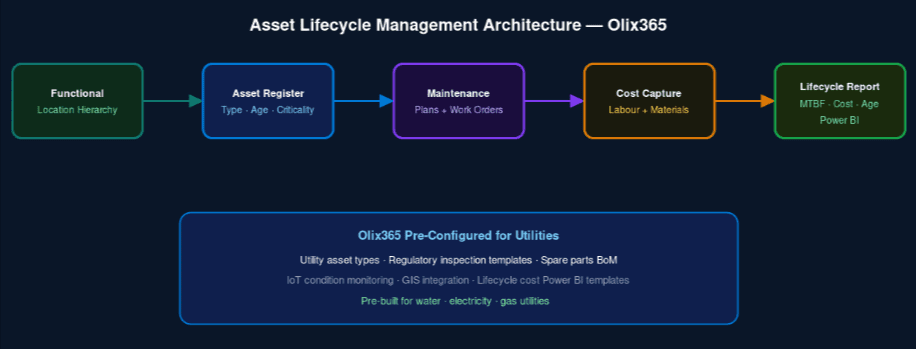
Step 1: Define Your Functional Location Hierarchy
- Level 1: Network (Water Distribution, Power Transmission)
- Level 2: Zone or District (Northern Zone, Southern Substation Group)
- Level 3: Site (Substation A, Pumping Station 4)
- Level 4: System (HV Board, Pump Room)
- Level 5: Position (Pump Bay 1, Bay 2)
To create your hierarchy in Dynamics 365:
- Navigate to Asset Management → Setup → Functional Locations → Functional Location Types.
- Define your location type levels matching the hierarchy above.
- Navigate to Functional Locations → All Functional Locations → New and build the tree top-down.
- Assign GPS coordinates to each location so the schedule board map view shows asset locations accurately.
Tip: Mirror your functional location hierarchy to your GIS layer structure wherever possible. This simplifies integration and ensures technicians can navigate from the map to the asset record in one click.
Step 2: Create Your Asset Catalogue
Assets are installed at functional locations. Each asset record in Dynamics 365 captures:
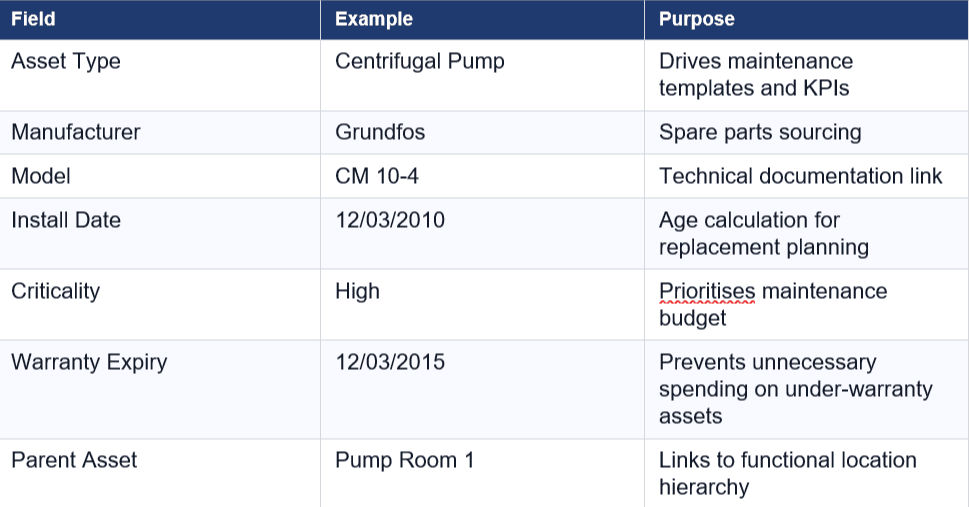
For large utilities with thousands of assets, use the bulk import feature in Dynamics 365 Data Management to import your asset register from Excel or CSV. Olix365’s migration templates pre-map the most common legacy CMMS field structures to Dynamics 365.
Step 3: Configure Preventive Maintenance Plans
Preventive maintenance (PM) plans define the recurring maintenance activities that keep assets running reliably. Dynamics 365 supports three trigger types:
Calendar-based: Maintenance triggered by the passage of time. Example: annual transformer oil test every 12 months.
Meter-based: Maintenance triggered by a measured value. Example: pump bearing inspection every 5,000 operating hours.
Condition-based: Maintenance triggered by an IoT sensor reading exceeding a threshold. Example: vibration alert triggers bearing inspection.
To create a PM plan:
- Navigate to Asset Management → Preventive Maintenance → Maintenance Plans → New.
- Set the plan type (Time, Counter, or Condition).
- Define the interval (e.g., Every 12 months).
- Add the maintenance job types (Inspection, Lubrication, Replacement).
- Assign the plan to asset types or individual assets.
- Run the Schedule Maintenance Plan function to generate work orders for the upcoming period.
Important: Set a realistic horizon when generating PM work orders. Generating 12 months of PM work orders at once is common; generating 3 years at once can create thousands of records that require manual adjustment if asset conditions change.
Step 4: Manage Spare Parts and Bill of Materials
Every asset type should have a Bill of Materials (BoM) linking it to the spare parts required for maintenance. Dynamics 365 Asset Management integrates with Dynamics 365 Supply Chain Management (or Business Central for smaller utilities) to:
- Show spare parts availability when a work order is created
- Automatically reserve stock when a work order is confirmed
- Trigger procurement requests when stock falls below the reorder point
- Track spare parts cost against each work order for full lifecycle cost visibility
This integration eliminates the separate “call the stores” step that delays field work in many utilities, and removes the risk of a technician arriving on site without the necessary parts.
Step 5: Track Maintenance History and KPIs
Every completed work order in Dynamics 365 automatically updates the asset’s maintenance history. Key metrics tracked per asset include:
- Total maintenance cost (labour + materials + contractor)
- Mean Time Between Failures (MTBF)
- Mean Time To Repair (MTTR)
- Planned vs. Reactive maintenance ratio
- Number of open defects
Access asset history from Asset Management → Assets → [Select Asset] → Related → Work Orders. Filter by date range, maintenance type, or job type to analyse failure patterns.
Step 6: Build Asset Lifecycle Cost Dashboards
Connect Dynamics 365 Asset Management data to Power BI to answer the capital planning questions that matter most:
- Which assets have exceeded their lifecycle cost threshold? Flag assets where cumulative repair costs approach or exceed replacement cost.
- What is the age profile of your asset base? Identify the wave of replacements coming in the next 5–10 years.
- Which asset types have the highest MTBF? Inform manufacturer selection for future procurement.
- What is the planned vs. reactive maintenance ratio by site? Identify sites where the maintenance strategy needs adjustment.
Olix365 provides a pre-built Asset Lifecycle Power BI template that connects to Dynamics 365 data with zero configuration, delivering these insights from day one. Learn about the broader ERP benefits for utility companies on our resources page.
Conclusion
Utility asset management is not simply about recording what you own – it is about using asset data to drive smarter maintenance decisions, reduce lifecycle costs, and prove compliance. Dynamics 365 Asset Management, configured by Olix365 for the utilities sector, gives you the structured data foundation, automated maintenance scheduling, and analytics capability to move from reactive fire-fighting to proactive asset stewardship.
Ready to modernise your asset management? Request a demo from the Olix365 team
Frequently Asked Questions
Can Dynamics 365 Asset Management handle both linear assets (pipelines, cables) and point assets (pumps, transformers)?
Yes. Dynamics 365 Asset Management supports both linear assets (managed through functional location hierarchies that represent route segments) and discrete point assets. For linear assets, Olix365 extends the standard configuration with linear referencing fields that track defect locations along a pipeline or cable route — integrating with GIS systems for spatial visualisation.
How do I migrate our existing CMMS data into Dynamics 365 without losing history?
Olix365 provides a structured data migration toolkit for the most common legacy CMMS platforms. The process involves mapping legacy asset IDs, location codes, and maintenance history records to the Dynamics 365 schema, running validation to identify data quality issues, and importing via the Data Management Framework. Historical work orders are imported as closed records to preserve maintenance history visibility.
Can maintenance plans be paused when an asset is taken out of service for a major overhaul?
Yes. You can change an asset's lifecycle state to "Out of Service" which suspends active maintenance plans and prevents new PM work orders from being generated. When the asset is returned to service and its state updated, the maintenance plans resume from the point of suspension rather than generating catch-up work orders for the period it was offline.
Does the system support sub-contractor maintenance as well as internal crews?
Yes. Work orders in Dynamics 365 can be assigned to external contractors as well as internal resources. Contractor costs are recorded against the work order and roll up into the asset's total lifecycle cost. Purchase orders can be generated directly from the work order for sub-contract work, with approval workflows ensuring cost control.
How does condition-based maintenance work in practice for utility assets?
Condition-based maintenance uses IoT sensor data (vibration, temperature, pressure, flow) fed into Dynamics 365 via Azure IoT Hub. When a sensor reading breaches a defined threshold, an automated alert triggers work order creation. The work order is pre-populated with the asset details, the triggered alert, and the recommended maintenance job type - reducing the time from detection to dispatch.
Can the system track regulatory inspection certificates and compliance deadlines?
Yes. Regulatory inspections can be set up as mandatory maintenance job types with fixed deadlines. The system tracks completion status, stores inspection certificates as attachments on the work order, and generates alerts when deadlines are approaching. Compliance reports can be exported directly from Dynamics 365 for submission to regulatory bodies.
How does asset criticality rating affect maintenance planning in Dynamics 365?
Asset criticality (High/Medium/Low) is a configurable field on each asset record that flows through to work order priority, maintenance plan intervals, and spare parts stocking levels. High-criticality assets receive more frequent inspection intervals and higher work order priority, ensuring your most operationally important assets receive proportionate attention and faster response times.
What is the difference between Dynamics 365 Asset Management and a traditional CMMS?
A traditional CMMS is a standalone maintenance management system with limited integration to finance, procurement, and HR systems. Dynamics 365 Asset Management is embedded within a full ERP platform, meaning maintenance costs flow directly to the general ledger, spare parts are managed in the same inventory system used for procurement, and labour costs are drawn from the same HR and time-entry module. This integration eliminates manual data rekeying and gives management a single, consolidated view of operational costs.